Managing users
A person in iontos is not "assigned to" a scope — they are simply someone holding grants, and their visibility follows from those grants. The Users tab is where you see the people visible at a scope and bring in someone who isn't there yet.
The Users tab
Select a scope, open Users. It lists every identity visible to you at this scope — everyone holding a grant here, capped by the organization boundary and any visibility limits. Each row shows the person's name and email, and two marks worth knowing:
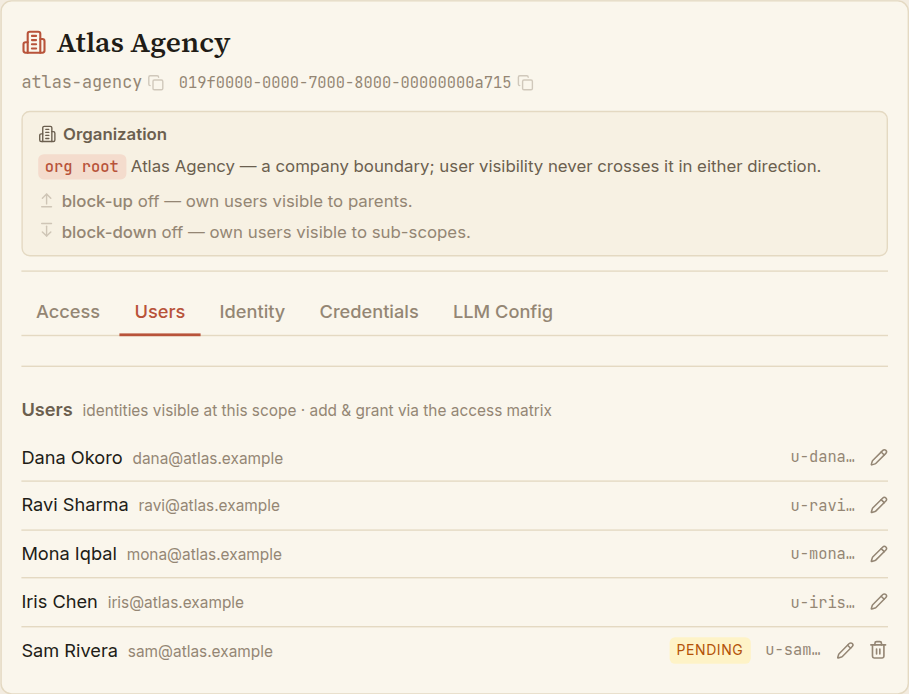
- A
pendingbadge — the person has been declared but hasn't signed in yet (see below). It clears itself the first time they log in. - An edit control (the pencil) to correct a person's profile, and — on pending rows only — a revoke control (the trash) to withdraw a declaration.
You add and grant people through the access matrix on the Access tab, not from a button here — declaring and granting are one flow, so they live together. The rest of this page is what that flow does.
Declaring a person before they sign in
You rarely wait for someone to appear. You declare them: name the person, choose how they'll sign in, and give them a first grant — all at once. They show up immediately, marked pending, so you can manage them right away; the mark clears when they first log in.
To reach the form: on the Access tab, use the add a user picker and search for the person; if no one matches, choose to declare them. The form asks for three things.
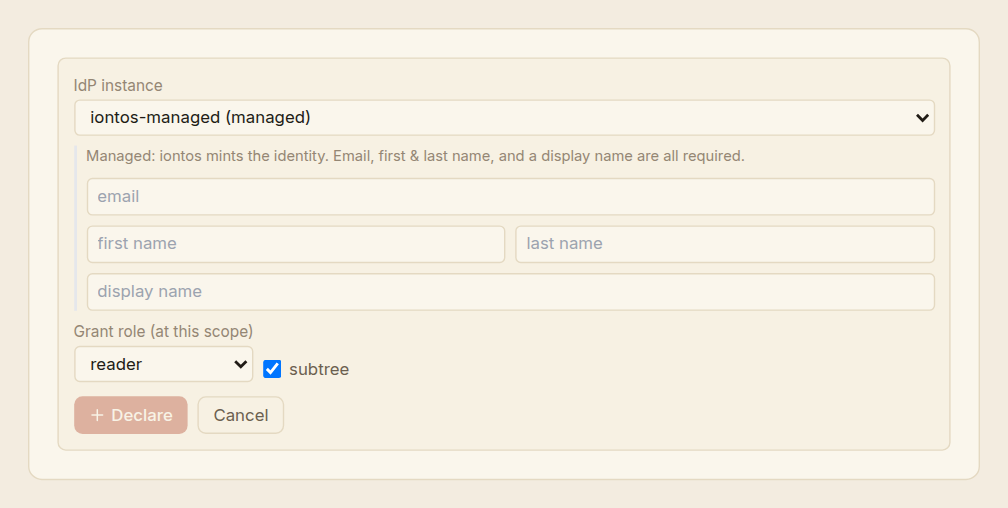
1 · Which identity provider
Pick the IdP instance the person will sign in through — one of the identity providers registered for this scope. Your choice changes what the form asks next, because managed and external providers bind identities differently:
| Provider kind | How you identify the person | Why |
|---|---|---|
| Managed (iontos runs the login) | Email, first name, last name, and a display name — all required. | iontos mints the account, so it needs the full profile up front. You don't supply a sign-in id; iontos creates one. |
| External (a foreign IdP owns identity) | A subject (the provider's stable user id) or an email — at least one. | The provider owns identity. Give the subject to bind the person now; give only an email to bind them at their first login. |
2 · The first grant
A declaration must carry at least one intended grant — declaring someone without giving them anything would leave them invisible again. Choose a role to grant at this scope, and whether it should reach the subtree:
- The role list offers Reader, the administrative roles (Operator / Admin / Owner), and Billing.
- Subtree extends the grant to the scope's descendants. It's available for Reader and Billing; the administrative roles can't be subtree grants (their reach already cascades by their nature), so the option is disabled for them.
3 · Declare
Choose Declare. The person appears in the users list and the access matrix at once, marked pending, holding the grant you gave them.
Keep a profile tidy
Choose the edit control on a person's row to fix their display name or email. This applies to managed identities — the ones iontos mints and therefore owns the profile for. For external identities the foreign provider is the source of truth for name and email, so those aren't yours to edit here.
Revoke a pending declaration
Declared the wrong person, or the wrong provider? While a row is still pending — before that person has ever signed in — choose the revoke control (the trash) and confirm. The declaration is withdrawn cleanly, as though it never happened.
Once a person has signed in they're no longer pending, and "revoking" no longer applies: to remove their access you revoke their grants, the same as for anyone else. Withdrawing a declaration is only for the not-yet-arrived.
Everything on this tab respects the user-visibility boundary. You see the people at this scope and the grants they hold within your reach — never their access elsewhere, and never anyone across an organization wall. The list is computed from who holds what, so it can't drift out of step with real access.