Managing scopes and organizations
The scope tree is where you shape a deployment: a scope per customer, per division, per sensitivity tier, as deep as you need. This guide covers the two structural actions you take on the tree — creating a sub-scope and raising an organization boundary on one that already exists — and how to read what the tree is telling you.
If the model isn't familiar yet, read Scopes and the data tree and Organizations and confidentiality first. This guide assumes them.
Where scope tools live
Open Administration. In the scope tree on the left, a + appears on every scope where you hold the authority to add a child. It shows up when you hover a row, and only on scopes you actually administer — creating a sub-scope is an Admin-level action, and administrative authority reaches down the tree, stopping at organization walls.
Selecting a scope shows its Organization panel at the top of the detail pane — the scope's boundary status and its visibility limits — which is where the "raise a boundary" action lives.
Create a sub-scope
- Hover the scope you want to create under and choose the
+. - Enter a slug — a short, lasting, machine-friendly handle (
family_and_friends,client_zeta). It identifies the scope; choose something durable. - Optionally add a description — free text for people to read.
- Make the one decision that matters: Organization boundary — on or off (see below).
- Choose Create.
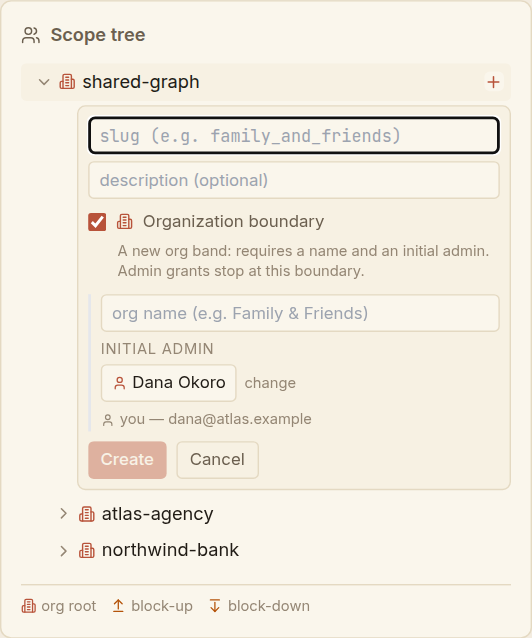
The one decision: does it start its own organization?
Creating a scope asks whether it begins a new organization — a company boundary that people-visibility never crosses — or simply joins its parent's. This single toggle is the most consequential choice you make when structuring a deployment, so iontos defaults it to the safe answer: on.
Leave it on when the new scope is a different company, client, or tenant that must stay confidential — an agency's client, an operator's customer bank. The form then asks for two more things:
- an organization name (the human label for the new company boundary —
Northwind Bank,Client Zeta); and - an initial admin — the first person who will administer the new organization. Because a fresh organization is walled off, no one outside it can reach in to appoint its first administrator, so you name one now. It defaults to you; pick someone else to hand the new organization straight to its owner. (Search by name or email — see Managing users if the person doesn't exist yet.)
Turn it off when the new scope is an internal division of the same company — a team, a project, a sensitivity tier under a customer you already manage. It then joins the parent's organization: your administrative reach cascades into it automatically, and colleagues in the organization can see one another across it. Only a slug and description are needed.
Turning the boundary off widens who can see whom; turning it on only ever narrows. The default protects confidentiality, so the deliberate act is opting out of it — never the reverse.
Raise an organization boundary on an existing scope
Sometimes a scope that started as an internal division needs to become its own company — an internal project spun out to an external client, say. You can raise a boundary on it after the fact.
- Select the scope in the tree.
- In its Organization panel, choose Raise org boundary here… (offered only on scopes that currently belong to an ancestor's organization — a scope that is already its own organization has nothing to raise).
- Give the new organization name and a genesis admin (again defaulting to you), then choose Raise boundary.
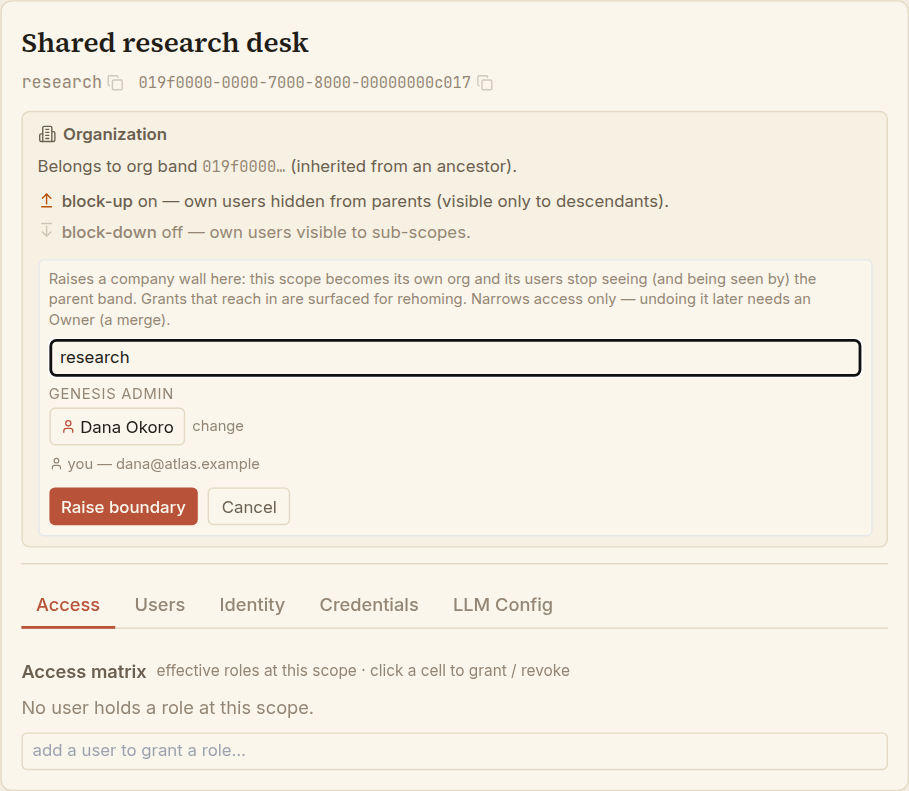
Raising a boundary only narrows visibility: the scope's people stop seeing — and being seen by — the parent organization, and administrative reach from above stops at the new wall. Any access that previously reached in from above is surfaced so it can be re-homed inside the new organization.
Raising a boundary affects only this scope and its parent, and it can only take visibility away — so it's ordinary administration. Removing a boundary later (merging the scope back into its parent's organization) widens visibility across two parties, so it is a heavier, jointly-authorized action reserved for an Owner. Raise a boundary when you're fairly sure you'll want it — don't raise one to "try it out."
Reading a scope's organization panel
The Organization panel summarises where a scope sits and how visible its people are:
org root— the scope is a company boundary; user visibility never crosses it in either direction.- Belongs to org band … (inherited from an ancestor) — the scope is inside an organization defined further up; it shares that organization's people-visibility.
- block-up — when on, the scope's own people are hidden from parent and sibling scopes, visible only to its own sub-scopes.
- block-down — when on, the scope's own people are hidden from its sub-scopes, still visible upward and to siblings.
These two limits are the two optional within-organization limits from the concept page, shown here by their interface names. With both off (the default), a scope's people are visible to everyone in the organization. They only ever narrow visibility, and never past the organization wall.
Nothing here changes data inheritance — a scope still reads everything above it in the tree regardless of organization boundaries or visibility limits. The organization boundary and these limits govern only who can see whom. Keeping the two apart, as the concepts stress, is what makes the model safe.