Credentials
Some of the things iontos does for you happen on the far side of a login. To run extraction against a large-language-model provider, to pull from an authenticated data source, or to call a paywalled external API, iontos has to present a secret — an API key, a username and password, a token, an OAuth2 client, a client certificate.
A credential is where that secret lives: authentication material, stored once against a scope, encrypted at rest, and used by iontos whenever a resource in that scope needs to make the call. You enter it; from then on iontos holds it and applies it for you.
The idea in one minute
A few properties are worth holding in mind before you add your first one — they explain almost everything about how the screen behaves.
- Entered once, referenced by many. A credential is not tied to the thing that uses it. You enter one provider key, and any number of resources — several model instances, a source, an API client — can point at the same credential. Change the key in one place and every user of it follows.
- Owned by one scope. A credential belongs to the scope you created it in, and only that scope's administrators can see or manage it. It is never shared sideways or automatically inherited by another scope.
- Write-only. You can set a secret and replace it, but iontos will never show it back to you — not the value, not even its length. The list tells you a credential's name, its scheme, and whether it is active; the secret itself leaves only when iontos uses it to make a call.
- Rotate, don't rename or re-add. When a key changes, you rotate the secret in place. The credential keeps its identity, so every resource already pointing at it keeps working with no re-wiring. A credential's name and scheme are fixed once created.
- Disable instead of delete. There is no hard delete. To take a credential out of service you disable it; every resource that references it immediately fails closed. Re-enabling it puts it straight back into service.
- Stays in this deployment. Credentials are never copied to another iontos instance. A key you enter here is not synced anywhere else — each deployment holds its own.
Who can manage credentials
Managing credentials is an Admin task at the scope that owns them. Two levels of authority exist, and the distinction matters:
| You can… | If you have… |
|---|---|
| See the scope's credentials — the inventory of names, schemes, and active state, e.g. to pick one when wiring up a resource | read access to the scope's credentials |
| Create, rotate, disable, and enable credentials | Admin at the scope |
A scope's Admin holds both. A narrower configurator who only needs to select an existing credential when binding a resource can be given the read authority alone — enough to choose from the list, but not to mint or change key material.
Administrative authority reaches downward through the scope tree (bounded by organization walls), exactly as other administrative roles do — see Roles and Grants.
Schemes and what each one asks for
Every credential has a scheme — the kind of authentication it carries. The scheme decides which fields the form shows you, and it is fixed when you create the credential.
| Scheme | What you enter |
|---|---|
| API key | A single key |
| Basic auth | A username and a password |
| Bearer token | A token |
| OAuth2 | A client ID, a client secret, and a token URL |
| mTLS | A client certificate and a client key (PEM) |
Where to find them
Credentials live per scope, under the admin surface.
- Open Admin.
- In the scope tree, select the scope whose credentials you want to manage. (You will only be able to act on scopes where you hold administrative authority.)
- Choose the Credentials tab.
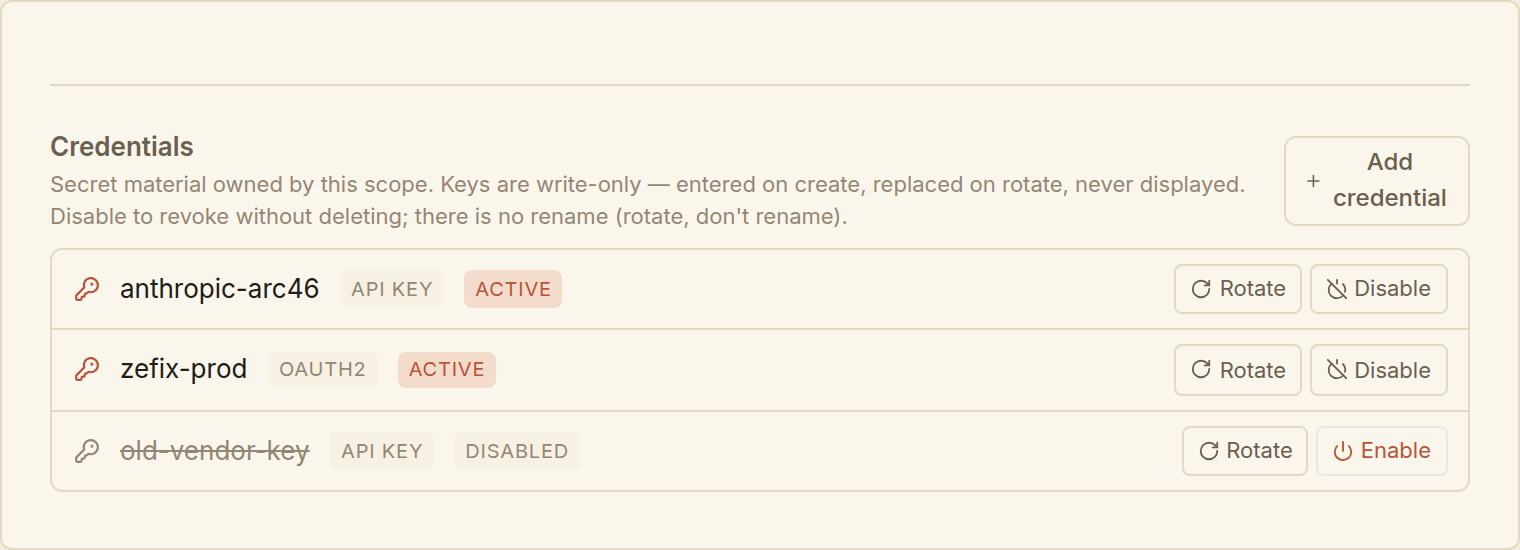
You will see the credentials owned by this scope, each showing its name, its scheme, and whether it is active or disabled. A disabled credential is shown struck through and greyed out. If the scope has none yet, you will see "No credentials at this scope yet."
Add a credential
- On the Credentials tab, choose Add credential.
- Enter a name — a short handle local to this scope, such as
anthropic-arc46orzefix-prod. This is how you and your resources will recognise the credential later. It cannot be changed afterwards, so pick something durable. - Choose the scheme. This too is fixed once set — if you pick the wrong one, create a fresh credential rather than trying to change it.
- Fill in the secret fields for that scheme (see the table above). These are masked as you type.
- Choose Create.
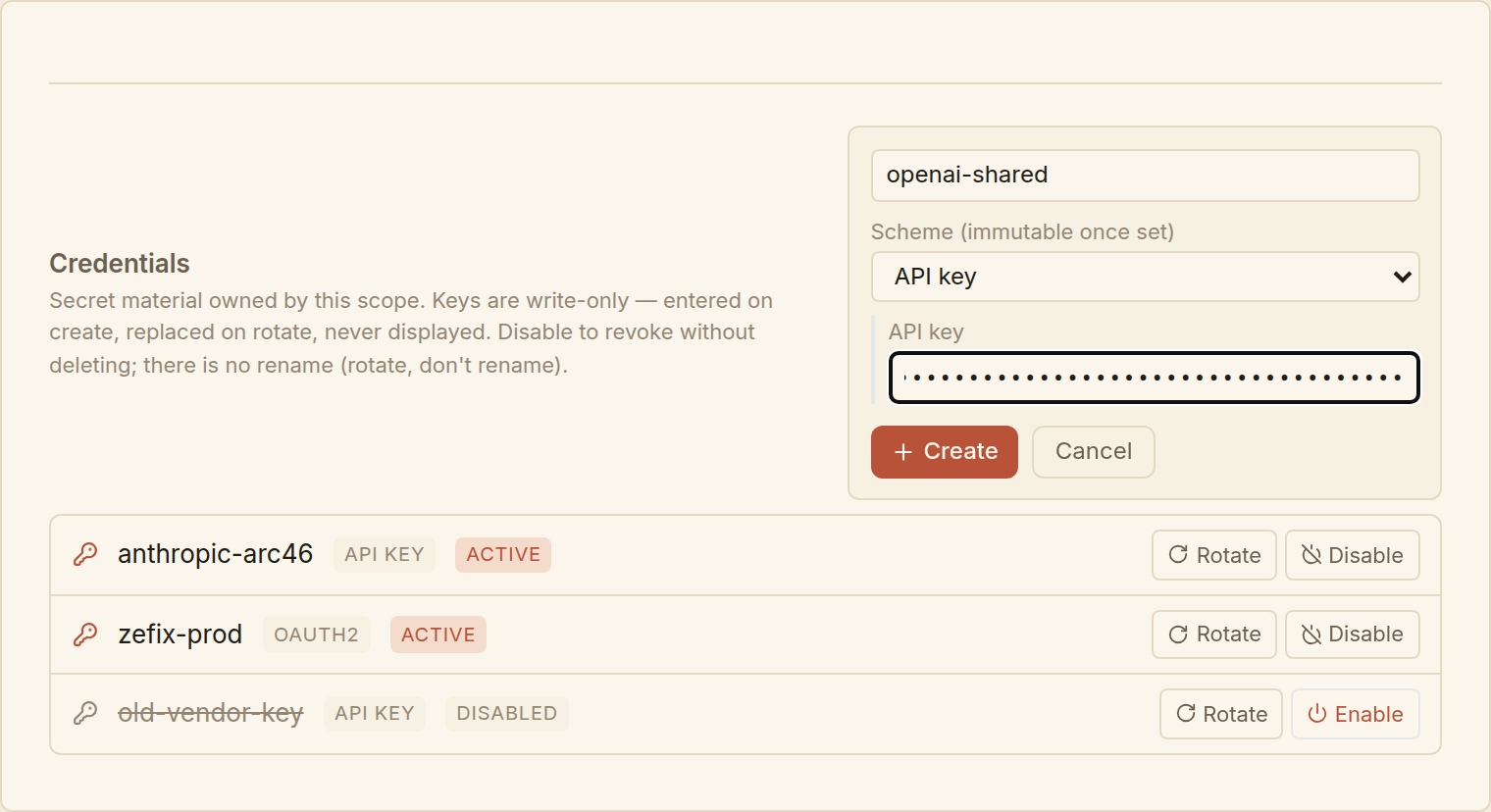
The credential appears in the list immediately, active and ready to be referenced. The secret you entered is not shown back to you at any point.
Because one credential is referenced by many resources, name it after the account or provider it authenticates to (anthropic-arc46), not after any single thing that uses it. That keeps the name true even as you point more resources at it.
Rotate a secret
Rotate when the underlying key changes — a provider re-issues it, or you cycle it on a schedule. Rotation replaces the secret in place: the credential keeps its identity, name, and scheme, so every resource already pointing at it keeps working with no changes on their side.
- Find the credential in the list and choose Rotate.
- Enter the new secret in the fields shown.
- Choose Rotate secret.
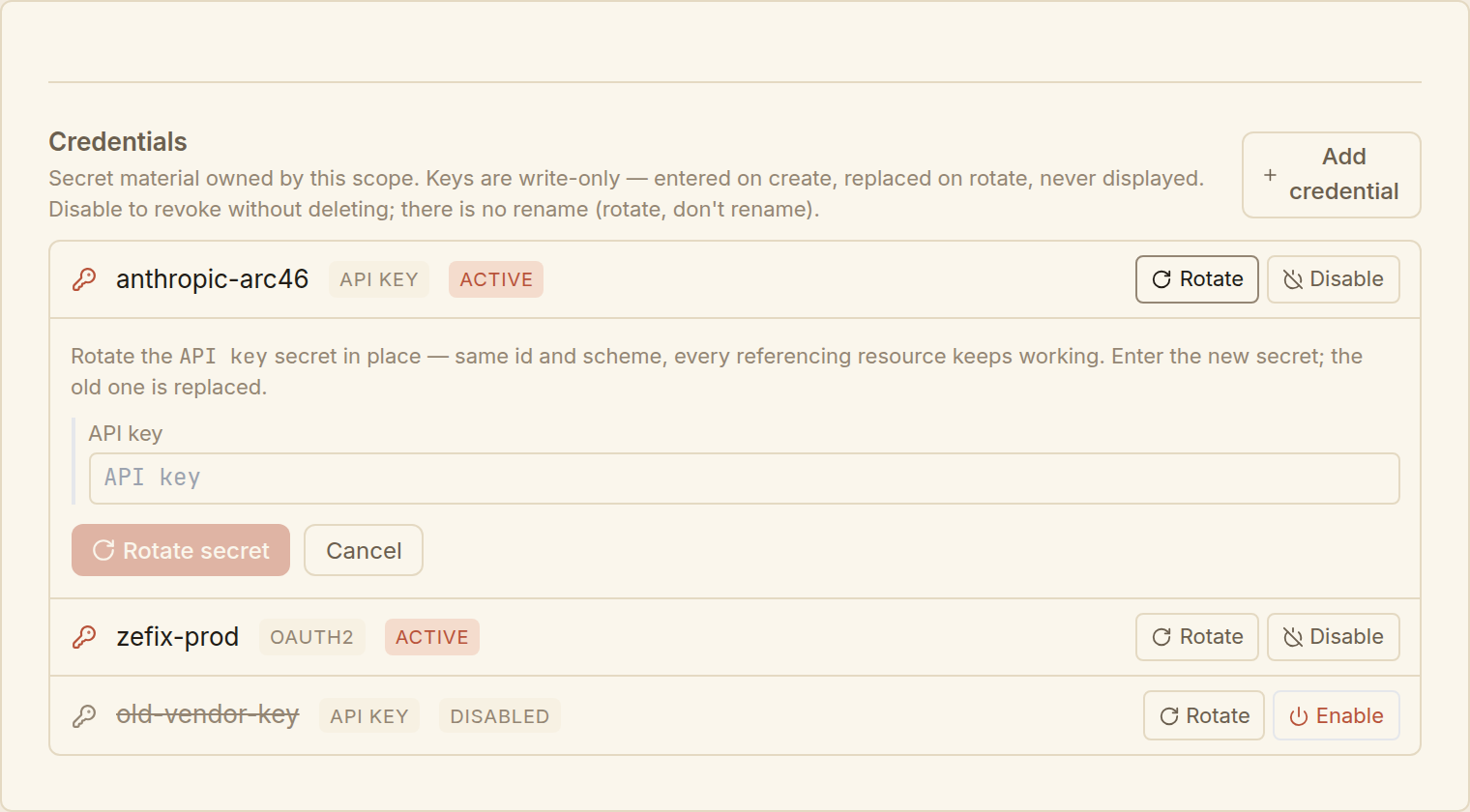
From that moment every resource using the credential authenticates with the new secret. There is nothing to re-point.
Deleting a credential and creating a new one with the same name would leave every resource pointing at the old one broken. Rotation exists precisely so you never have to. Replace the secret; keep the credential.
Disable and enable
Disabling takes a credential out of service without deleting it — the safe way to revoke a key or pause an account.
- Choose Disable on a credential to turn it off. Every resource that references it immediately stops working (it fails closed — it will not silently fall back to anything else).
- Choose Enable on a disabled credential to put it straight back into service.
Enabling a disabled credential is not a harmless toggle. It re-arms every resource that references it to resume authenticated calls — and to spend against the account behind the secret. Treat enabling with the same care as creating.
What you cannot do — and why
A few things are deliberately impossible on this screen. They are guarantees, not gaps:
- You cannot read a secret back. Once entered, a secret is never displayed, echoed, or revealed — not even its length. If you have lost the underlying key, obtain a fresh one from the provider and rotate.
- You cannot rename a credential or change its scheme. Both are fixed at creation. Rotate the secret when it changes; create a new credential if you genuinely need a different name or scheme.
- You cannot hard-delete. Use Disable; the credential stays on record (out of service) rather than vanishing out from under the resources that referenced it.
- You cannot manage another scope's credentials from here. The screen only ever shows and touches the credentials owned by the scope you selected.
For the record
Every change you make to a credential — create, rotate, disable, enable — is recorded in the audit trail, attributed to you and to the scope. Changing a credential changes what every resource pointing at it can do, so none of it happens silently.