The administration surface
Everything an administrator does — creating scopes, drawing organization boundaries, granting access, adding people, wiring up identity providers, storing credentials, configuring models — happens on a single screen: Administration. This page is the map. Each task then has its own guide.
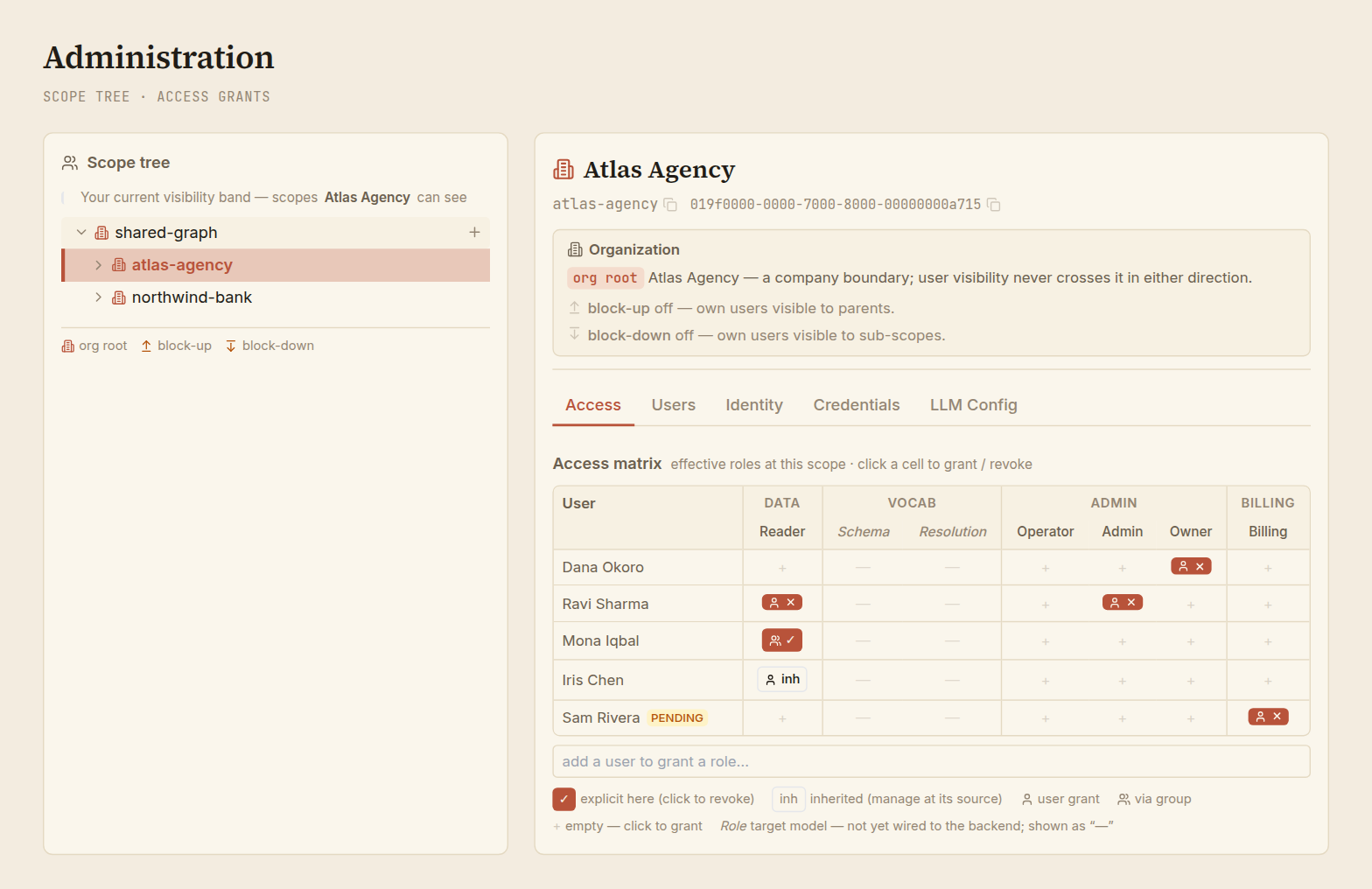
The screen has two halves, and they answer two different questions:
- The scope tree, on the left — where. Every scope you can administer, arranged as the data tree. You pick the scope you want to work on.
- The detail panel, on the right — what. Everything about the scope you selected, grouped into tabs. This is where the actual work happens.
The idea in one minute
- Pick a scope, then act on it. Nothing you do is global. You always select a scope in the tree first; every tool on the right then applies to that scope.
- You only see what you administer. The tree shows the scopes you can reach, and the tabs appear only on scopes where you hold an administrative role. On a scope you can see but not administer, you get the header and nothing else — an honest "managed by someone else," not a wall of buttons that only error.
- The tabs mirror the model. Access and Users are the who-can-do-what axis; Identity, Credentials, and LLM Config are the how-this-scope-is-wired axis. They map one-to-one onto the core concepts.
- Reading is always safe. Opening a scope, expanding the tree, viewing a tab — none of it changes anything. Every change is an explicit button, and the consequential ones ask first.
Do you have administrative access?
The Administration screen is only meaningful for someone who holds an Operator, Admin, or Owner role on at least one scope (the administrative axis). If you hold none, the screen tells you so plainly:
No administrative access — You don't hold an administrative role (Operator, Admin, or Owner) on any scope. Ask an administrator of the scope you need to manage to grant you access.
A pure Reader, Curator, or Billing contact has real access to the product — they simply have no scope to administer, so there is nothing for this screen to show them.
Reading the scope tree
The tree roots at the platform root and shows the branch you can reach. A few marks are worth knowing:
| What you see | What it means |
|---|---|
| A building icon next to a scope | This scope is an organization root — a company boundary. |
| An up / down arrow badge | A visibility limit is set on the scope (its people are hidden from parents, from sub-scopes, or both). |
| A shaded band when a scope is selected | The selected scope's visibility band — every scope whose people it can see. It never crosses an organization boundary. |
(not authorized to view sub-scopes) | A scope beneath a nested organization you don't administer. It may well have sub-scopes; you just can't see into them from here. |
| A scope shown struck through | Archived. |
Selecting a scope loads its detail on the right; expanding a scope (the chevron) reveals its sub-scopes. A + appears on scopes where you can add a child — see Managing scopes and organizations.
What each tab does
Once you select a scope you administer, the detail panel offers a header — the scope's name, its organization status, and its visibility limits — and these tabs:
| Tab | What you manage there | Guide |
|---|---|---|
| Access | Who holds which role at this scope — the grant matrix. | Granting access |
| Users | The people visible at this scope; declaring someone before their first sign-in. | Managing users |
| Identity | The identity providers this scope's people sign in through. | Identity providers |
| Credentials | The secrets iontos uses to reach external services on this scope's behalf. | Credentials |
| LLM Config | The models this scope uses, and which model each task resolves to. | LLM configuration |
Holding an administrative role somewhere is only what gets you onto this screen. Whether you can act on a particular scope is decided scope by scope — and again on the server for every change you make. The interface simply hides tools you couldn't use anyway; it is never the thing enforcing the boundary.