Granting access
Access in iontos is a sum of grants: a person can do, at a scope, whatever their own grants and their groups' grants add up to. The Access tab makes that sum visible and editable as a grid — the access matrix.
Read Roles and Grants first if the axes and cascade rules aren't familiar; this guide is the how-to for placing them.
The access matrix
Select a scope, open the Access tab. Rows are the people who hold a role here (plus anyone you add); columns are the roles, grouped by axis. Each filled cell tells you two things at once — what role, and why the person has it.
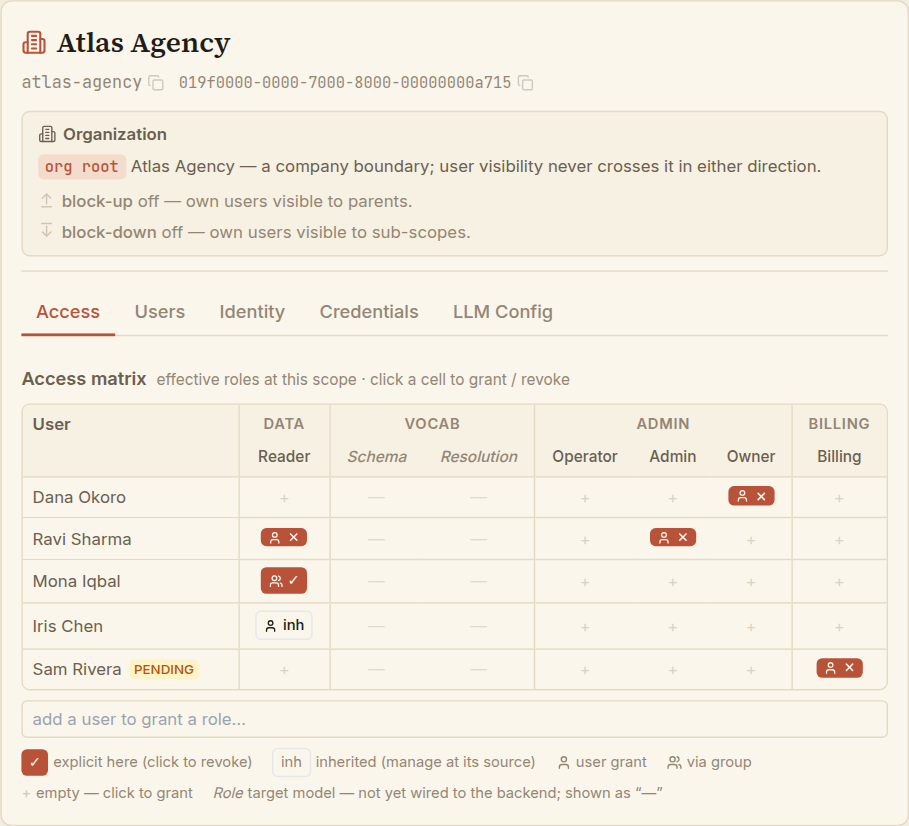
Reading a cell
A cell is empty or filled, and a filled cell is coded by origin (colour) and by subject (icon):
| Cell | Meaning | Can you change it here? |
|---|---|---|
| Solid badge, person icon | An explicit grant made at this scope, to this person directly. | Yes — click to revoke. |
Outline inh badge | Inherited: the grant is anchored at an ancestor scope and cascades down. | No — manage it where it's anchored. |
| Group icon badge | The person holds the role through a group, not a personal grant. | No — change the group's grant, or the person's membership. |
+ | The person holds nothing for this role here. | Yes — click to grant. |
Hovering a badge shows its full story — where it's anchored, whether it's a user or group path, whether it covers the subtree. This is the same "who can do what, and why" you'd otherwise have to reason out by hand.
The columns
The columns are the role axes: Data (Reader), Admin (Operator, Admin, Owner), Billing, and a Vocab pair (Schema, Resolution).
The two Vocab columns are part of the intended role model but are not yet wired in this build, so they always render as “—” and can't be granted. They're shown so the full shape of the model is visible; ignore them for now. The everyday grantable roles are Reader, the three administrative roles, and Billing.
Grant a role
- Find the person's row (add them first if they're not shown — see below).
- Click the
+in the column for the role you want to give. - Confirm. The grant is placed at this scope, for that person, directly.
The cell fills with a solid badge immediately. A matrix grant always applies to this scope only — it's the quick, everyday tool. When you need a grant that reaches a whole subtree, or one given to a group rather than a person, declare it with the fuller controls (see Managing users for the declaration form, which carries a subtree option).
Giving someone Admin lets them manage this scope's people and settings — it does not let them read the knowledge graph. Reading is the Reader column, granted separately. This surprises people constantly; the matrix makes it visible, because the two live in different columns and neither implies the other. See Roles.
Revoke a role
Click a solid, person-icon cell — a grant made here, to this person — and confirm. It's removed at once.
You can only revoke from this screen what was granted here, to this person. Inherited and group-derived access is deliberately read-only in the matrix: to change it you go to its source (the ancestor scope, or the group). This is the access-is-only-ever-added rule in practice — there's no way to subtract one role from one person as an override; you remove the grant that provides it, wherever that is.
Add a person to the matrix
To grant a role to someone who isn't yet a row, use the add a user to grant a role… picker beneath the grid:
- Search by name or email. It offers the people visible at this scope who aren't already listed. Pick one and they appear as an empty row, ready to grant.
- No match? If the person doesn't exist yet, the picker offers to declare them — create the identity and place their first grant in one step. That form is covered in Managing users.
Adding someone to the grid doesn't grant anything on its own — it just puts their row in front of you so you can click the roles you intend. A person with no grants anywhere simply isn't visible yet; granting them their first role here is what makes them appear for good.